This page lists files in the current directory. You can view content, get download/execute commands for Wget, Curl, or PowerShell, or filter the list using wildcards (e.g., `*.sh`).
wget 'https://sme10.lists2.roe3.org/mdrone/csv-to-html-table/.gitignore'.DS_Storewget 'https://sme10.lists2.roe3.org/mdrone/csv-to-html-table/README.md'# CSV to HTML Table
Display any CSV file as a searchable, filterable, pretty [HTML table](https://www.scaler.com/topics/html/tables-in-html/). Done in 100% JavaScript.
Check out the working demo: https://csv-to-html-table.netlify.app/
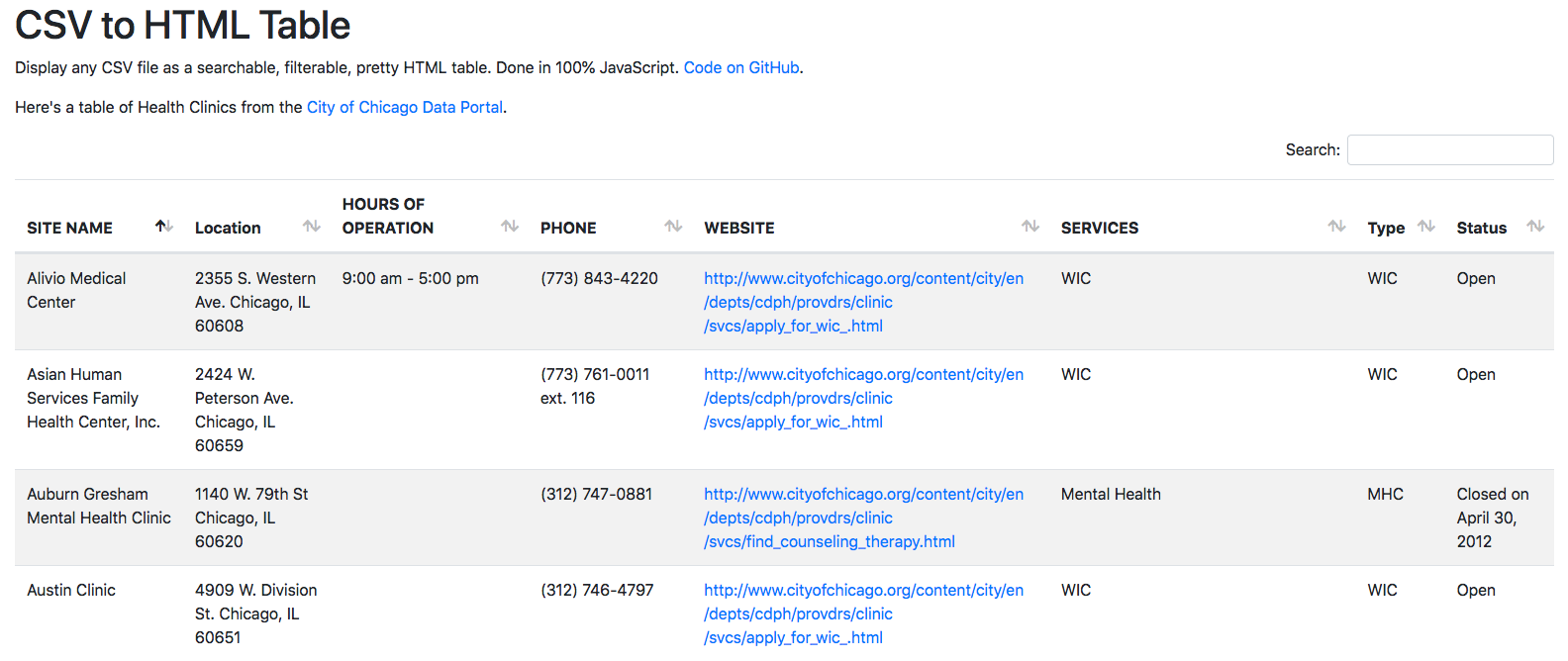
## Usage
#### 1. Clone this repository (in the command line)
``` bash
git clone git@github.com:derekeder/csv-to-html-table.git
cd csv-to-html-table
```
#### 2. Add your CSV file to the `data/` folder
#### 3. In `index.html` set your options in the `CsvToHtmlTable.init()` function
``` html
<script>
CsvToHtmlTable.init({
csv_path: 'data/Health Clinics in Chicago.csv',
element: 'table-container',
allow_download: true,
csv_options: {separator: ',', delimiter: '"'},
datatables_options: {"paging": false}
});
</script>
```
##### Available options
* `csv_path` Path to your CSV file.
* `element` The HTML element to render your table to. Defaults to `table-container`
* `allow_download` if true, shows a link to download the CSV file. Defaults to `false`
* `csv_options` jQuery CSV configuration. Use this if you want to use a custom `delimiter` or `separator` in your input file. See [their documentation](https://code.google.com/p/jquery-csv/wiki/API#$.csv.toArrays%28%29).
* `datatables_options` DataTables configuration. See [their documentation](http://datatables.net/reference/option/).
* `custom_formatting` **New!** A list of column indexes and custom functions to format your data (see below)
##### Custom formatting
If you want to do custom formatting for one or more column, you can pass in an array of arrays containing the index of the column and a custom function for formatting it. You can pass in multiple formatters and they will be executed in order.
The custom functions must take in one parameter (the value in the cell) and return a HTML string:
Example:
``` html
<script>
//my custom function that creates a hyperlink
function format_link(link){
if (link)
return "<a href='" + link + "' target='_blank'>" + link + "</a>";
else
return "";
}
//initializing the table
CsvToHtmlTable.init({
csv_path: 'data/Health Clinics in Chicago.csv',
element: 'table-container',
allow_download: true,
csv_options: {separator: ',', delimiter: '"'},
datatables_options: {"paging": false},
custom_formatting: [[4, format_link]] //execute the function on the 4th column of every row
});
</script>
```
Note that you should take care about HTML escaping to avoid [XSS](https://www.owasp.org/index.php/Cross-site_Scripting_(XSS)) or broken layout.
jQuery has a nice function [text()](https://api.jquery.com/text/) which safely escapes HTML from value.
#### 4. Run it
You can run this locally using this handy python command:
```bash
python -m SimpleHTTPServer
```
...or with Python 3:
```bash
python -m http.server
```
navigate to http://localhost:8000/
#### 5. Deploy it
**GitHub pages** You can host your table on GitHub pages for free! Once you've made all your changes and committed them, push everything in the `master` branch to `gh-pages` which automatically enables GitHub pages.
```bash
git push origin master:gh-pages
```
Then navigate to http://your-github-username.github.io/csv-to-html-table/
Read more on working with [GitHub pages projects](https://help.github.com/articles/user-organization-and-project-pages/#project-pages).
**Web server** This project should work on any web server. Upload this entire project (including all the `css`, `data`, `fonts` and `js` folders) to a public folder on your server using FTP.
#### 6. iframe it (optional)
Want to embed your nifty table on your website? You can use an [iframe](http://www.w3schools.com/tags/tag_iframe.asp). Once you've deployed your table (above in step 5) you can link to it in an iframe right in your HTML.
```html
<iframe style="border-style: none;" src="http://derekeder.github.io/csv-to-html-table/" height="950" width="600"></iframe>
```
## Dependencies
* [Bootstrap 4](http://getbootstrap.com/) - Responsive HTML, CSS and Javascript framework
* [jQuery](https://jquery.com/) - a fast, small, and feature-rich JavaScript library
* [jQuery CSV](https://github.com/evanplaice/jquery-csv/) - Parse CSV (Comma Separated Values) to Javascript arrays or dictionaries.
* [DataTables](http://datatables.net/) - add advanced interaction controls to any HTML table.
## Common issues/troubleshooting
If your table isn't displaying any data, try the following:
1. Use the [Chrome developer console](https://developers.google.com/chrome-developer-tools/docs/console) or install [Firebug](http://getfirebug.com/) for FireFox. This will allow you to debug your javascript.
1. Open your table in the browser and open the javascript console
* Chrome developer console on a Mac: Option+Command+J
* Chrome developer console on a PC: Control+Shift+J
* Firebug in Firefox: Tools => Web Developer => Firebug => Open Firebug)
1. If you do see javascript errors, the error will tell you what line it is failing on. Best to start by going there!
## Errors / Bugs
If something is not behaving intuitively, it is a bug, and should be reported.
Report it here: https://github.com/derekeder/csv-to-html-table/issues
## Contributors
* [Derek Eder](http://derekeder.com) - primary contributor
* [ychaouche](https://github.com/ychaouche) - [javascript tag fixes](https://github.com/derekeder/csv-to-html-table/pull/30)
* [Freddy Martinez](https://github.com/b-meson) - [localized javascript libraries](https://github.com/derekeder/csv-to-html-table/pull/17)
* [Sergey Ponomarev](https://github.com/stokito) - [CSV escaped in HTML output](https://github.com/derekeder/csv-to-html-table/pull/60)
* [djibe](https://github.com/djibe) - [Bootstrap 4 and latest DataTables](https://github.com/djibe/csv-to-html-table)
## Note on Patches/Pull Requests
* Fork the project.
* Make your feature addition or bug fix.
* Send a pull request. Bonus points for topic branches.
## Copyright
Copyright (c) 2018 Derek Eder. Released under the [MIT License](https://github.com/derekeder/csv-to-html-table/blob/master/LICENSE).
wget 'https://sme10.lists2.roe3.org/mdrone/csv-to-html-table/index.html'<!DOCTYPE html>
<html lang="en">
<head>
<meta charset="utf-8">
<meta content="width=device-width, initial-scale=1, shrink-to-fit=no" name="viewport">
<meta http-equiv="X-UA-Compatible" content="IE=edge">
<title>CSV to HTML Table</title>
<meta name="author" content="Derek Eder">
<meta content="Display any CSV file as a searchable, filterable, pretty HTML table">
<!-- Bootstrap core CSS -->
<link rel="stylesheet" href="https://stackpath.bootstrapcdn.com/bootstrap/4.2.1/css/bootstrap.min.css" integrity="sha384-GJzZqFGwb1QTTN6wy59ffF1BuGJpLSa9DkKMp0DgiMDm4iYMj70gZWKYbI706tWS"
crossorigin="anonymous">
<link rel="stylesheet" href="https://cdn.datatables.net/1.10.19/css/dataTables.bootstrap4.min.css">
</head>
<body>
<div class="container-fluid">
<main class="row">
<div class="col">
<h1>CSV to HTML Table</h1>
<p>Display any CSV file as a searchable, filterable, pretty HTML table. Done in 100% JavaScript. <a
href="https://github.com/derekeder/csv-to-html-table">Code
on GitHub</a>.</p>
<p> Here's a table of Health Clinics from the <a href="https://data.cityofchicago.org/browse?q=health%20clinic&sortBy=relevance&utf8=%E2%9C%93">City
of Chicago Data Portal</a>.
</p>
<div id="table-container"></div>
</div>
</main>
<footer class="row">
<div class="col">
<hr>
<p class="text-right"><a href="https://github.com/derekeder/csv-to-html-table">CSV to HTML Table</a> by
<a href="http://derekeder.com">Derek
Eder</a></p>
</div>
</footer>
</div>
<script src="https://code.jquery.com/jquery-3.3.1.min.js"></script>
<script src="https://cdnjs.cloudflare.com/ajax/libs/twitter-bootstrap/4.2.1/js/bootstrap.bundle.min.js"></script>
<script src="js/jquery.csv.min.js"></script>
<script src="https://cdn.datatables.net/1.10.19/js/jquery.dataTables.min.js"></script>
<script src="https://cdn.datatables.net/1.10.19/js/dataTables.bootstrap4.min.js"></script>
<script src="js/csv_to_html_table.js"></script>
<script>
function format_link(link) {
if (link)
return "<a href='" + link + "' target='_blank'>" + link + "</a>";
else return "";
}
CsvToHtmlTable.init({
csv_path: "data/Health Clinics in Chicago.csv",
element: "table-container",
allow_download: true,
csv_options: {
separator: ",",
delimiter: '"'
},
datatables_options: {
paging: false
},
custom_formatting: [
[4, format_link]
]
});
</script>
</body>
</html>